 AI Prompt Assistant
Your saved prompts, one // away.
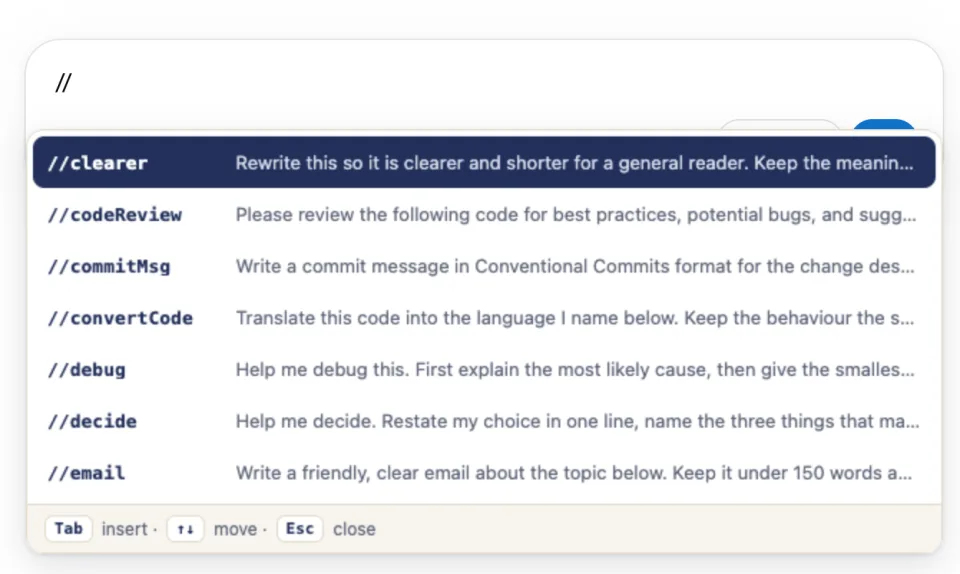
AI Prompt Assistant is a free Chrome extension. Type // in ChatGPT, Claude, Gemini and other AI chats, pick one of your saved prompts, and press Tab. It drops straight into the message box, ready to send.
The Chrome Web Store version is still 3.2.2. The new look, starter packs, added sites and signed-in ChatGPT fix arrive with 4.0.0, after store review.
- No account needed
- Prompts stay in your browser
- No ads or tracking


How it works
Three keys and you're done. Your prompts work the same way on every supported site.
Type //
Click in the chat's message box and type two slashes. A menu of your saved prompts opens.
Pick a prompt
Keep typing to narrow the list: //sum shows shortcuts with “sum” in them. Move with ↑ ↓.
Press Tab
The prompt replaces your //shortcut. Add your own text, then send it as usual.
Tip: press Tab, not Enter. On many chat sites Enter sends the message. Tab always inserts the prompt and leaves sending to you.
What you get
Starter packs, your own sites, prompt search, toolbar status and the private menu frame arrive with 4.0.0. The store version is still 3.2.2.
One set of prompts, every chat
Save a prompt once and use it in ChatGPT, Claude, Gemini, Copilot and more. No more copying from a notes file.
Starter packs
Not sure what to write? Pick from seven packs, such as Everyday, Developer or Student, when you install. Or start blank.
Add your own sites
Use your prompts on any other chat site, such as your company's AI tool. You allow each site one at a time.
Easy to manage
Search, add, edit and delete prompts on the settings page. The toolbar button tells you if the extension is on for the page you're on.
Back up to your Google Drive
Optional. Save your prompts to a file in your own Drive and load them on another computer.
Export and import
Download your prompts as a JSON file, or import a file a colleague shared with you.
Light and dark
The // menu matches the chat site's light or dark look. Settings follow your system.
Private by design
Prompts are stored in your browser. From 4.0.0, the // menu is drawn in its own frame the chat site can't read. We run no server and collect nothing. Read the privacy policy.
Where it works
These are the built-in sites for 4.0.0. The store version is still 3.2.2; the ten new sites (Perplexity through Dust), moved addresses and support across all of app.glean.com arrive with 4.0.0. See current store support and the signed-in ChatGPT issue.
| Chat tool | Addresses |
|---|---|
| ChatGPT | chatgpt.com chat.openai.com |
| Claude | claude.ai |
| Google Gemini | gemini.google.com |
| Google AI Studio | aistudio.google.com |
| DuckDuckGo AI Chat | duckduckgo.com duck.ai |
| Microsoft Copilot | copilot.microsoft.com copilot.com m365.cloud.microsoft |
| Glean | app.glean.com |
| NotebookLM | notebooklm.google.com |
| Perplexity | perplexity.ai www.perplexity.ai |
| Grok | grok.com |
| DeepSeek | chat.deepseek.com |
| Mistral Le Chat | chat.mistral.ai |
| Meta AI | meta.ai www.meta.ai |
| Poe | poe.com |
| Kimi | kimi.com www.kimi.com |
| Qwen | chat.qwen.ai |
| Felo | felo.ai |
| Dust | app.dust.tt |
Using a chat site that isn't listed? From 4.0.0, add it yourself, such as your company's internal AI tool. On that site, click the extension's toolbar button and choose Turn on for this site. See the setup guide.
Ready to try it?
Install it from the Chrome Web Store, then follow the short setup guide to add your first prompt.